The Cellar Point of Sale (POS) system is available on the iPad. To set up your POS registers, please follow the instructions below:
1. On your iPad, open the Apple App Store.
2. In the search bar, type "Cellar POS" and locate the app developed by Cellar Technologies Inc.
3. Tap the "Get" button to download the application.
4. When prompted, tap the "Install" button.
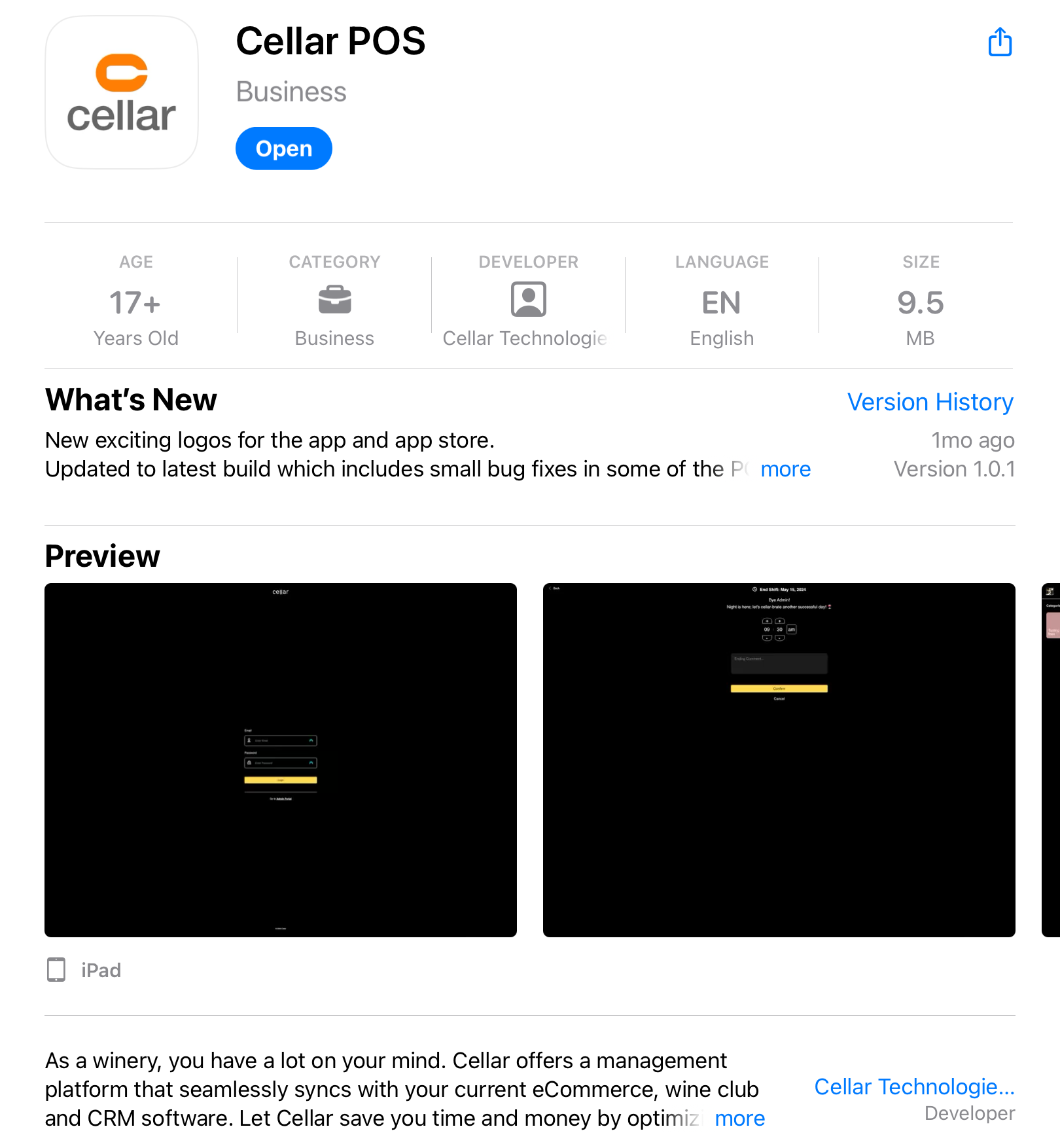
5. Once the installation is complete, open the app. You will be directed to the Cellar login screen.
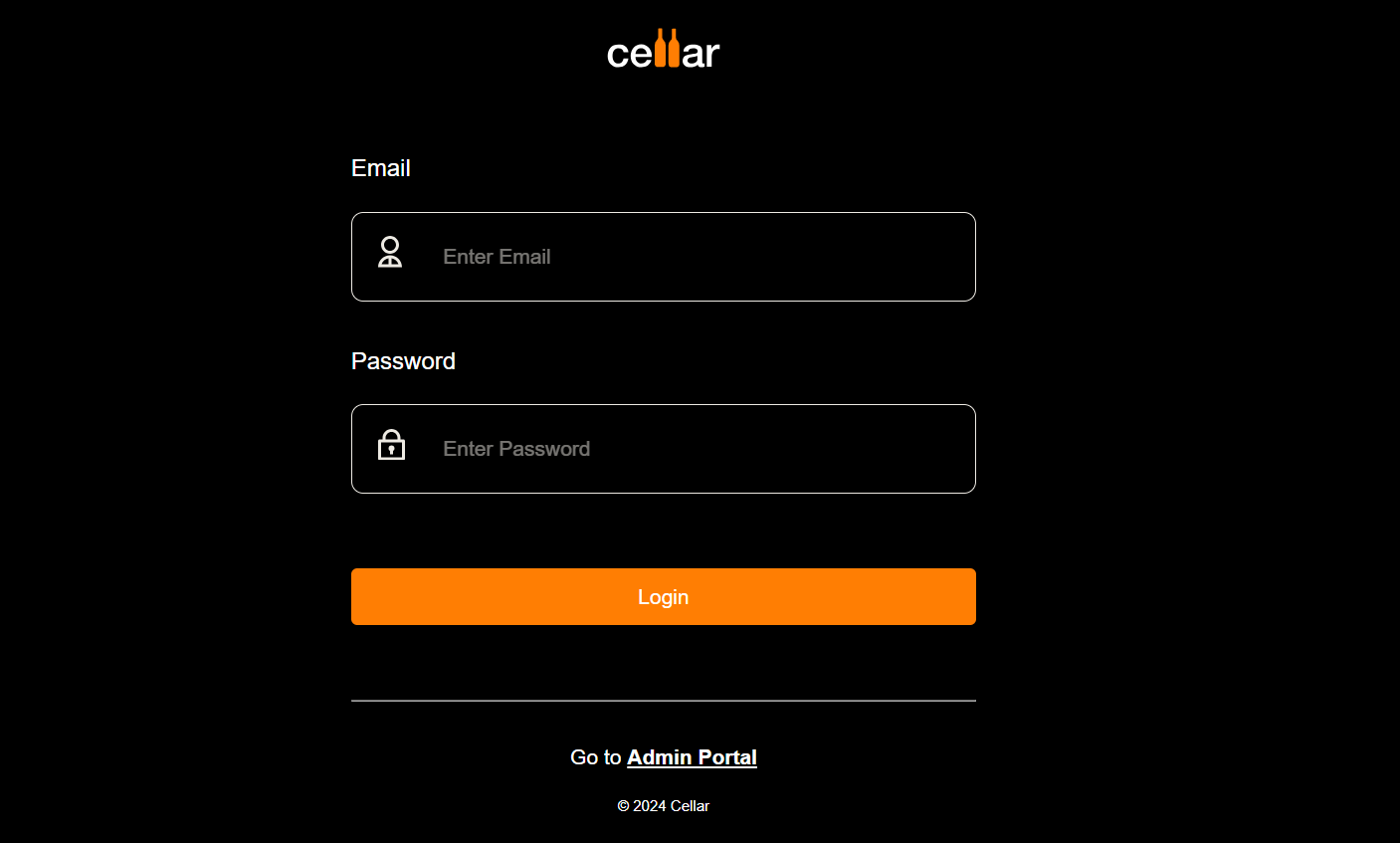
6. Enter your Cellar email and password, then click the "Login" button.
Warning: When registering a POS for the first time, you must log in with a user account that has Manager or Owner permissions, in addition to an active Host role.
7. A screen will appear prompting you to assign a space to this POS device. Use the drop-down menus to select the appropriate Brand and Warehouse.
8. You will then be directed to the main POS Cart page, where you can begin using the POS. Moving forward, any Host associated with the assigned Brand will be able to log in using a PIN.
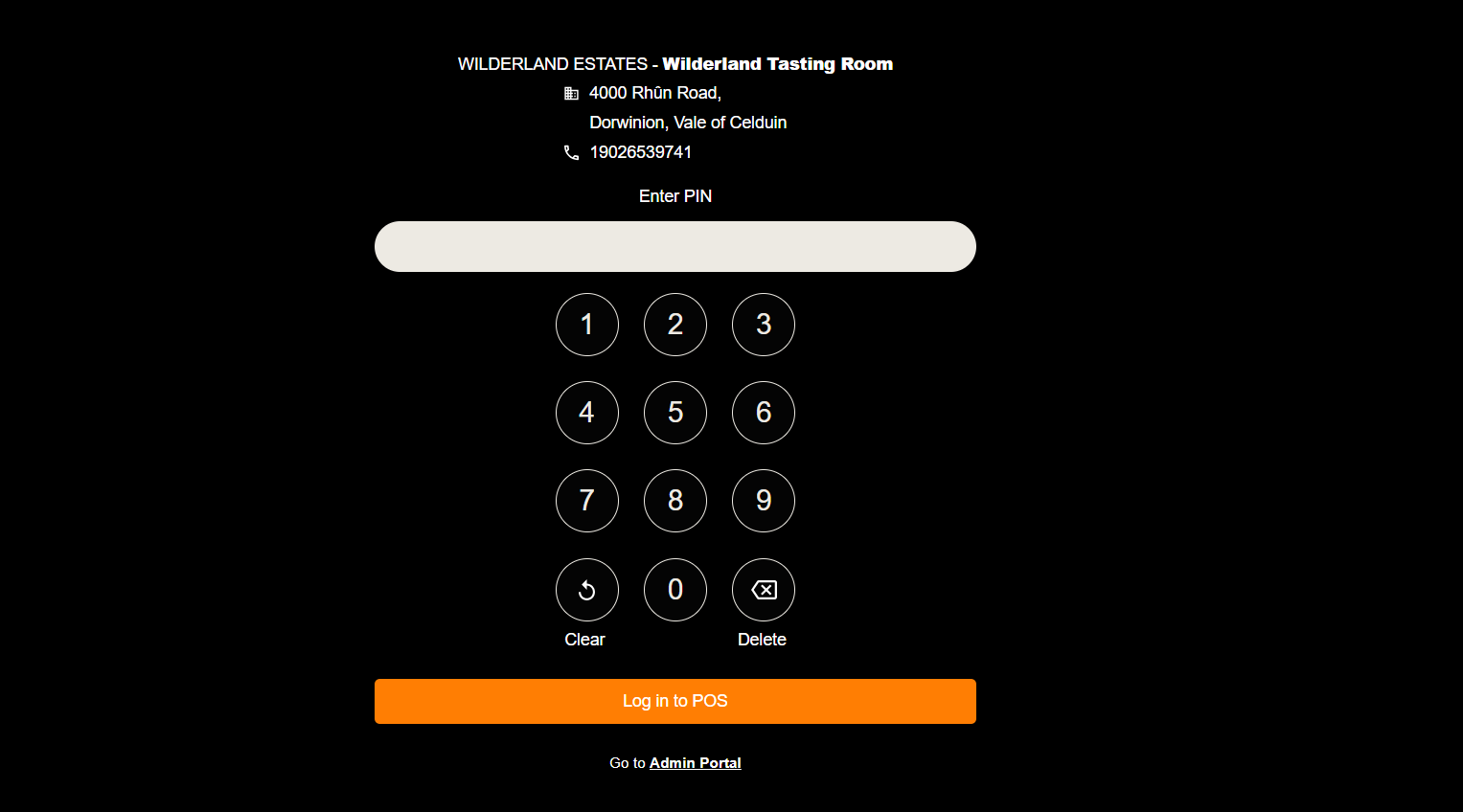
Tip: Steps 6-8 can also be used to access the POS within a browser such as Chrome or Firefox by opening https://pos.getcellar.co/.
Was this article helpful?
That’s Great!
Thank you for your feedback
Sorry! We couldn't be helpful
Thank you for your feedback
Feedback sent
We appreciate your effort and will try to fix the article